

F11 - test configuration
In this dialog you assign your devices under test to the individual test stations.
You first need to define one or more test stations in project wizard before you can use this dialog.
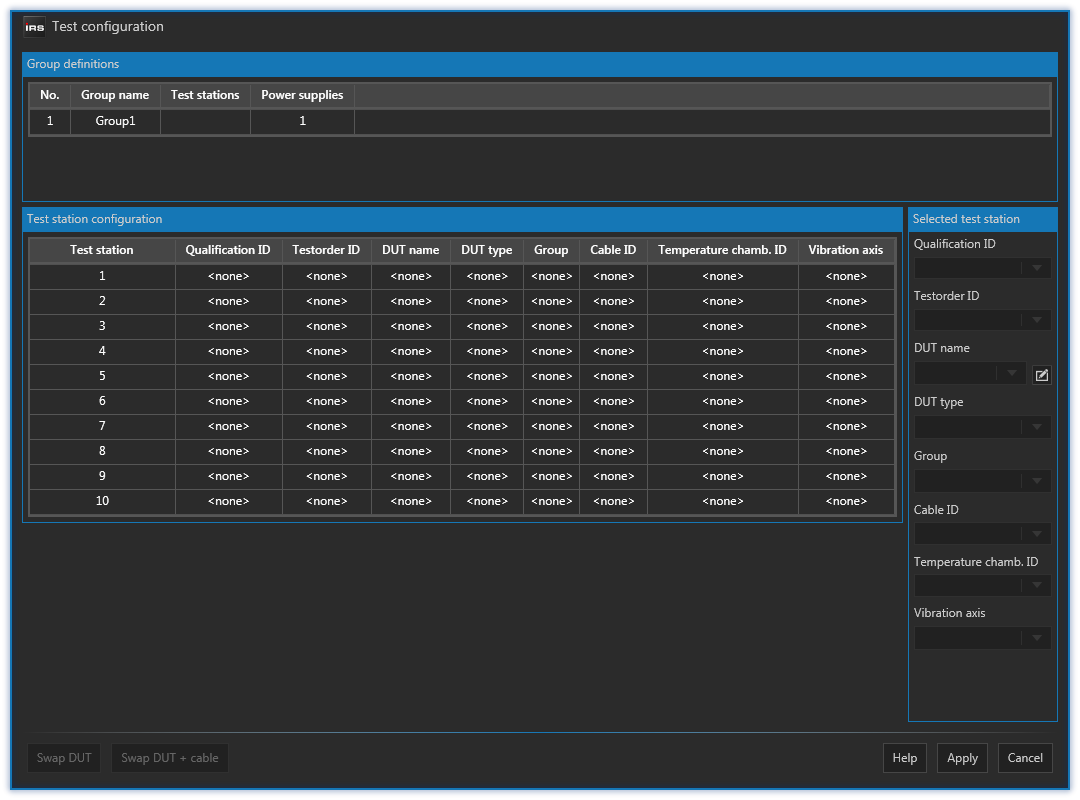
You first need to define one or more DUT's in DUT management dialog before you can assign them to test stations.
The best practice procedure to configure your test stations is as follows:
- Make sure you have created the DUT's you want to assign
- If not, create them in DUT management dialog.
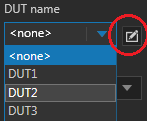
- If not, create them in DUT management dialog.
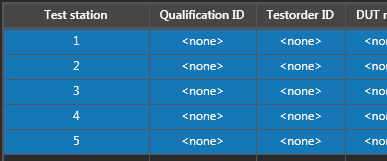
- Multi-select all stations you want to configure
- Select first station
- Press and hold shift key
- Select last station
- To select non-consecutive stations hold down ctrl key while selecting each station.
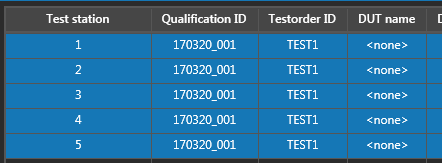
- Choose / enter the common for all settings
- Those typically are test order ID, qualification ID, DUT type, Group and chamber ID
- Qualification ID is optional
- Chamber ID is optional
- Vibration axis is optional
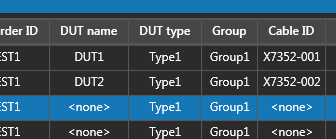
- Select each individual station and choose / enter the individual settings
- Those typically are DUT name and cable ID.
- Selection will jump to next row if you enter DUT name and current row is complete.
- Cable ID is optional and should be entered first, otherwise the selection might jump to next row.
- Press Apply